Home Router Settings and Work VPN Tussles: How a TV Ad Blocker Locked Me Out of Work
This is a post about home router settings and work VPN tussles: the quiet fights between the network you run at home and the VPN your employer makes you use. I lost one of those fights this week. A privacy setting I put on my Google Nest Wifi router to stop a Samsung TV from tracking what we watch broke my work VPN sign-in. Every error message pointed somewhere else. It took a reboot, a day of wrong theories and a reinstalled VPN client before the real cause turned up in a log file.
The lesson up front: be careful tinkering with anything that touches work, even when it's your own home router. If your home network carries your work day, your router is work equipment now. Changes to it need research first, not after.
If you work from home, the next one of these could be yours. So here is the whole story, the mechanism in plain English, and a checklist of the home-router settings that most often pick a fight with corporate VPNs.
What happened
- Monday afternoon (Oct 26). While cleaning up the living-room TV, we pointed the whole house's DNS at AdGuard DNS, a free service that answers "nowhere" (
0.0.0.0) for known ad and tracking servers. The goal was the TV's ads and its ACR ("automatic content recognition", the feature that identifies what's on screen and reports it back). It worked. The TV's tracking servers went dark. - Monday night. The work VPN connected fine. Nothing seemed wrong.
- Tuesday morning, after a reboot. The VPN failed at the sign-in step with "Authentication failed due to problem verifying server certificate."
- The rest of Tuesday went on wrong theories. Was it the new macOS? Did the company swap its VPN certificate overnight? Did the VPN client need reinstalling? (It got reinstalled. Three times. It didn't help.)
- Wednesday, 1 AM. A log line finally gave it away. Wednesday morning we turned AdGuard off at the router, and the VPN connected on the first try.
Why a TV ad blocker broke a work login
Modern corporate VPN sign-in isn't just "type a password into the VPN app." Most companies now use single sign-on: the VPN client (here, Cisco Secure Client) opens a small built-in web browser, which loads the company's login page and then a second-factor prompt (here, Duo). That login page, like most web pages, quietly loads extra pieces from other companies, including analytics scripts that measure how the page is used.
Here's the chain that broke:
- Duo's prompt calls an analytics service (Amplitude) while it loads.
- The ad-blocking DNS answered "0.0.0.0" for that analytics server, because analytics servers are exactly what ad blockers block.
- On a Mac, 0.0.0.0 means "this computer." My Mac happens to run a small private web server for development, so the analytics request landed on my own machine. My machine answered with its own homemade security certificate.
- A normal browser would shrug. Chrome sees one failed analytics call and moves on. The page still works.
- The VPN's built-in browser did not shrug. It is much stricter than Chrome: it saw one untrusted certificate on the page, cancelled the entire login, and reported it as "problem verifying server certificate."
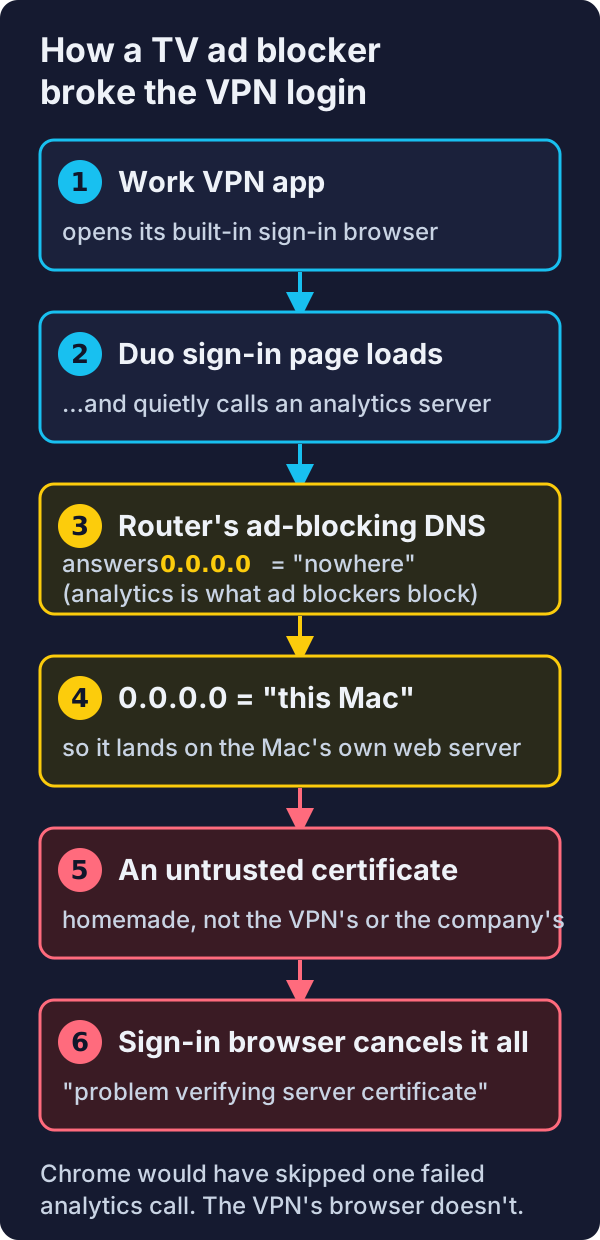
So the error was true but misleading. There was a bad certificate. It just wasn't the VPN's, or the company's. It belonged to a blocked analytics call that had nothing to do with logging in.
Why it took a day to see
- It worked at first. My Mac had already remembered (cached) the real addresses from before the router change. Everything looked fine until Tuesday's reboot cleared that memory.
- Nobody connected two unrelated projects. "Clean up the TV" on Monday and "VPN broken" on Tuesday felt like different problems in different rooms.
- The error message pointed at the wrong server. "Server certificate" sounds like the VPN server. So the obvious checks were on the VPN server's certificate, and that certificate was perfect.
- Every quick test passed. The company's certificates were complete and valid. The Mac's own security check accepted them. Even the VPN client's own connection to the server passed its certificate check every single time. The failure only happened inside that little sign-in browser.
How the real cause was found
The breakthrough came from the operating system's own log, not from the VPN's error dialog. Three lines told the story:
- The VPN client's own check of its server:
Return success from VerifyServerCertificate. So the server was fine. - A moment later, inside the sign-in browser:
Trust evaluate failure: [root AnchorTrusted], thenUntrusted server certificate, request canceled.So something on the page was signed by an authority the browser didn't trust. - The VPN's sign-in browser keeps a web cache. Listing the hosts in it and checking each one showed two analytics servers answering with my own Mac's development certificate. Asking the router about them returned
0.0.0.0. Asking a public DNS server returned real addresses.
That's the whole case: the router's ad blocker was rewriting the answers.
The home-router settings most likely to fight your work VPN
Ad blocking is just one of them. If your work VPN starts acting strangely, these are the usual suspects, roughly in order of how often they cause trouble:
1. Filtering or "privacy" DNS on the router
- What it is: AdGuard DNS, NextDNS, Pi-hole, Cloudflare for Families, or an ISP's "safe browsing" option, set on the router so it covers every device.
- How it bites: blocks analytics, telemetry and sometimes security domains that sign-in pages, device-health checks and collaboration tools quietly depend on. Symptoms range from "certificate" errors to sign-in pages that spin forever.
- Safer approach: filter per device (the TV, the kids' tablets), not at the router. Leave work devices on normal DNS.
2. Home network addresses that clash with your company's
- What it is: your home network uses the same private address range as something inside your company (common examples:
192.168.1.x,10.0.0.x). - How it bites: once the VPN is up, your computer can't tell whether an address means "the printer at home" or "the server at work." Some internal sites just won't load.
- Safer approach: move your home network to a less common range (many mesh routers let you change it under LAN settings).
3. IPv6 half-working
- What it is: your router and ISP hand out IPv6 addresses, but the corporate VPN only tunnels IPv4.
- How it bites: some traffic slips around the VPN over IPv6, or the VPN client complains about IPv6 and refuses to connect. Security teams also dislike the "leak."
- Safer approach: don't turn IPv6 off blindly. If the VPN misbehaves, test with it off on that one computer first, then tell your service desk what you saw.
4. "Security" and "protection" features on ISP routers
- What it is: ISP-branded threat protection, parental controls, "secure DNS", and browsing protection add-ons.
- How it bites: same as filtering DNS, but often switched on by default and hidden in an ISP app you forgot you installed.
- Safer approach: know what's switched on. If you have both an ISP router and a mesh system, check both.
5. Double routers (double NAT)
- What it is: the ISP's router and your own mesh router both act as routers, one behind the other.
- How it bites: some VPN types and video calls struggle through two layers of address translation. You get slow connects, dropped tunnels, one-way audio.
- Safer approach: put one of them in bridge or pass-through mode, so only one device is "the router."
6. Packet size (MTU) problems
- What it is: the VPN wraps every packet inside another one, which makes it bigger. Some home or ISP links can't carry the bigger packets.
- How it bites: the classic symptom is "the VPN connects, small things work, but big pages or file transfers hang."
- Safer approach: this one is usually your IT team's fix (they tune the VPN), but mentioning "connects but large transfers hang" saves everyone an hour.
7. Other VPNs and "network helpers" on the same computer
- What it is: a personal VPN, a mesh VPN like Tailscale, a firewall app, or a "network protection" tool.
- How it bites: two tunnels fight over which one owns your traffic and your DNS.
- Safer approach: turn the personal one off before connecting to work, and back on after. Tailscale is the one I live with, so it gets its own section below.
Tailscale: what it is, how it works, and why it takes turns with work
Tailscale is a "mesh" VPN. I use it to reach my own machines (my Mac, my phone, my home PC, a couple of cloud servers) from anywhere, as if they were all on one private network. It's brilliant, and it's also the second VPN on a laptop that already has to run a work VPN. Here's how it works, in plain English.
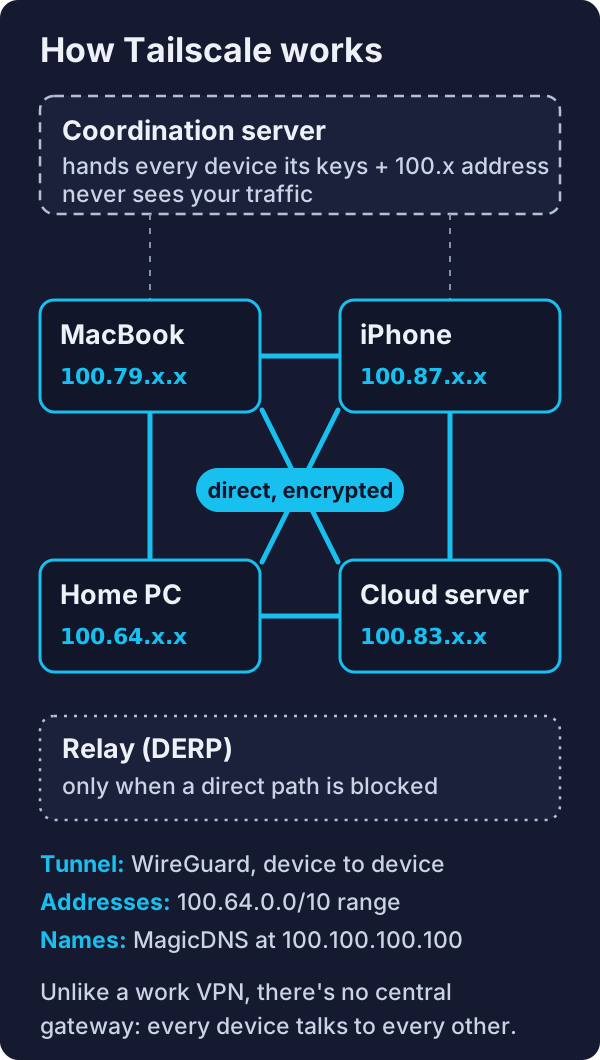
- Every device gets a private address in the 100.x range. Tailscale hands them out from
100.64.0.0/10, a block set aside for carrier-grade use that normal home networks don't use. - A coordination server makes the introductions. When a device joins, it registers its public key. The coordination server tells every device how to reach every other one. It never carries your traffic.
- The devices then talk directly to each other, encrypted with WireGuard, a modern, lean VPN protocol. There's no central gateway: it's a mesh, every device to every device.
- Getting through home routers is the clever part. Most home routers block unexpected incoming connections. Tailscale has both devices reach out to each other at the same moment ("NAT traversal"), so each router lets the reply in.
- When a direct path is impossible, traffic goes through a relay (Tailscale calls them DERP servers). It's still end-to-end encrypted; the relay only passes along sealed packets. It's slower, but it works.
- MagicDNS gives devices names. Instead of remembering
100.79.x.x, you type the machine's name. Tailscale answers those lookups itself at100.100.100.100.
Why Tailscale and a work VPN have to take turns
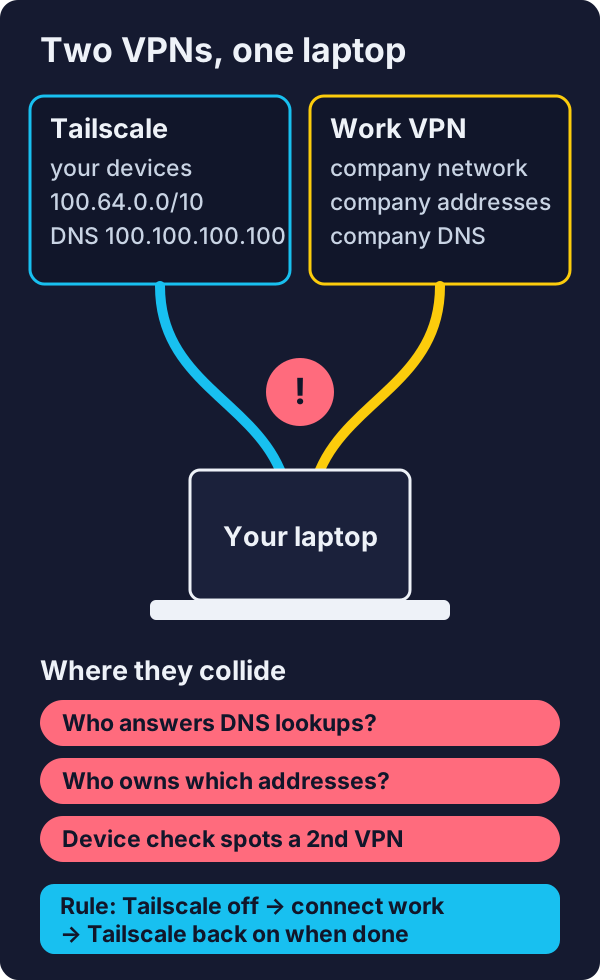
- Both want to answer your DNS lookups. Tailscale's MagicDNS and the company's DNS servers can't both be "the" answer for everything. When they fight, internal work sites stop resolving, or your own machines do.
- Both want to own certain addresses. If your company happens to use part of the
100.64.0.0/10range internally (some large networks do), the two tunnels claim the same addresses and traffic goes to the wrong place. - The work VPN's device check may object. Many corporate VPNs inspect your computer before letting you in, and a second VPN running alongside can look like a policy violation.
- My rule, and the one I'd recommend: quit Tailscale, connect to work, and turn Tailscale back on when the work day is done. Don't try to run both unless your IT team has explicitly approved it.
- One more Tailscale trap: it starts at login, and on my Mac "stopping" it didn't always take its tunnel down. Quit the app before connecting to work, not just "disconnect".
A troubleshooting checklist
- Ask "what changed?" at home, not just at work. Router settings, a new mesh point, an ISP app update, a privacy tweak for the TV. The change may be days old if a reboot was what exposed it.
- Try another network. If the VPN works on your phone's hotspot but not on home Wi-Fi, stop blaming the VPN. It's your network.
- Don't trust the error text literally. "Certificate" errors during sign-in can come from any piece of the sign-in page, not just the VPN server.
- Use the official client. Many companies require a specific VPN app because it also checks your computer's health before letting you in. A look-alike from an app store may install fine and still never work.
- Don't reinstall in circles. We reinstalled the VPN client three times. It was never the client.
- Bring evidence to your service desk: the exact time it failed, the exact error, and "works on hotspot / fails on home Wi-Fi." That turns a two-day ticket into a ten-minute one.
The real lesson: if it touches work, research first
It's your router, but it's not only yours anymore. The moment a work laptop joins your Wi-Fi, every router setting becomes part of your employer's security chain: their VPN, their sign-in pages, their device checks. A change that's harmless for a TV can quietly break all of that. Before you tinker:
- Ask who and what uses this network. Work laptops, work phones, a spouse's work-from-home day. A router change hits all of them at once.
- Research the change against work tools first. Search "[the setting] + [your VPN client]" and "[the setting] + single sign-on" before flipping it. "Ad-blocking DNS breaks VPN login" was a known problem. Two minutes of reading would have found it.
- Try it on one device before the whole house. Put the filter on the TV, not the router. If you must go house-wide, keep work devices on normal DNS.
- Test the work VPN right after the change, and again after a reboot. Caches can hide a break for a day, like it did here.
- Write down the old setting before you change it. "DNS was Automatic" is the one line that makes the undo take thirty seconds instead of a day.
- Don't make network changes the night before a work day unless you can test the VPN that same night.
What I changed
- AdGuard is off the router. The house is back on normal DNS, and the work VPN connected on the first try.
- New house rule: no filtering DNS at the router. If the TV needs muzzling, it gets muzzled on the TV, where it can't take anyone's work day down with it.
- The lesson I'll keep: a router change is a change to every device in the house, including the one that pays the bills. Treat it like work equipment, because it is.